How to keep sticky notes always on top in Windows
There are two simple options. Use the pin in Microsoft Sticky Notes for short text notes, or use FloatyNotes if you also need files and images within reach.
Option 1: Use Microsoft Sticky Notes
Recent versions of Sticky Notes include an option to keep a note on top of other windows. Older versions may not have it, so update the app if you don't see it. The exact button can change between versions.
It's free and works well for short reminders.
Option 2: Use FloatyNotes
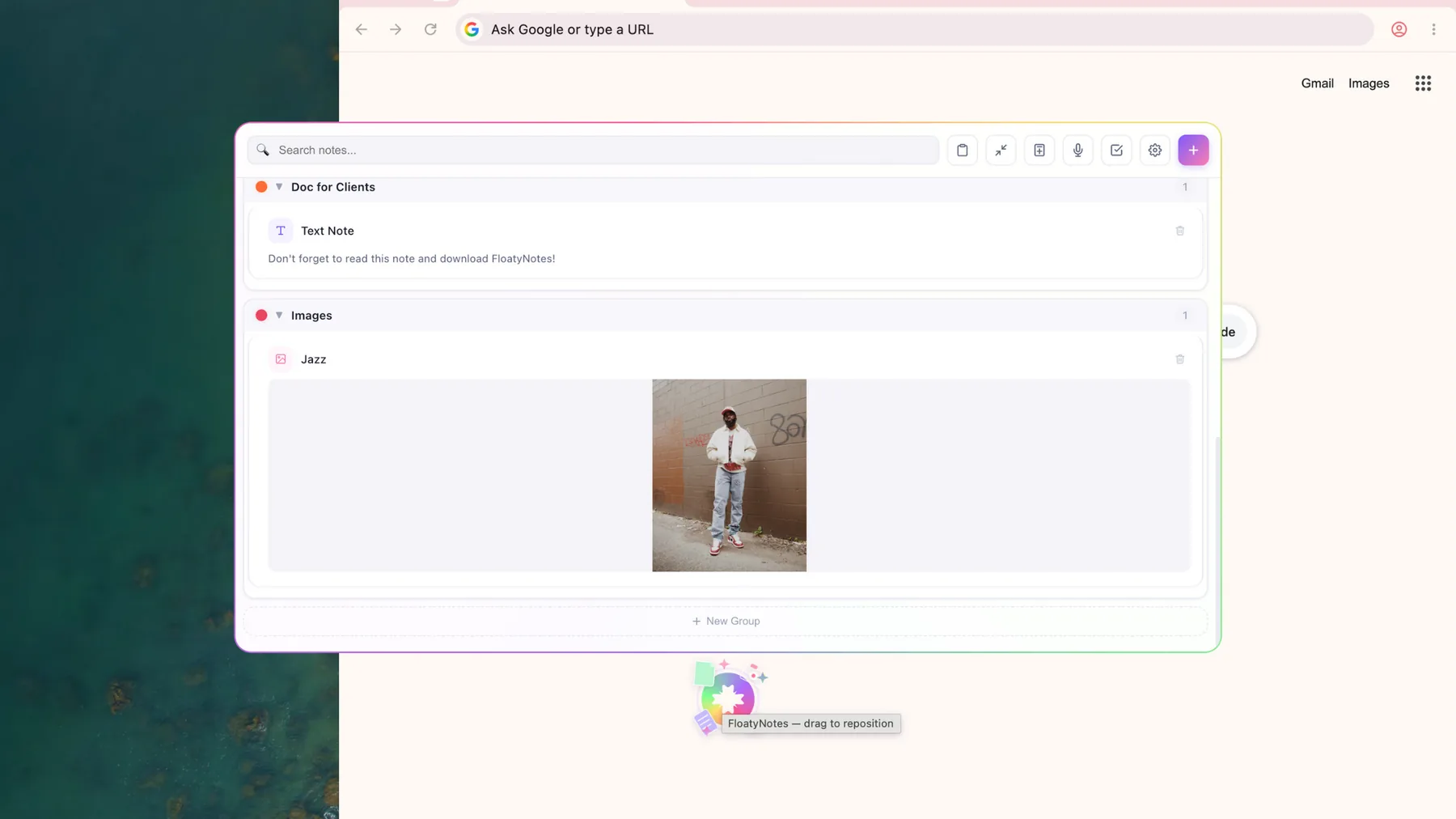
FloatyNotes is a small floating icon that stays above your other windows. Click it to open a panel of everything you've saved, and click it again to collapse it.
- Install FloatyNotes and enter your email to start the 7-day trial.
- Drag the floating icon to any corner or edge of your screen.
- Drag in text, images or files from any app, or paste from your clipboard.
- Drag items back out into any app, or click one to copy it.
The panel holds everything together. You can't yet float a single note in its own window.
No card required. Then $4.99/month or $39.99/year.
Which should you use?
- Just short text notes: Microsoft Sticky Notes is free and does the job.
- Notes plus files, images, audio or video: FloatyNotes is built for that.
- Things you move between apps all day: FloatyNotes lets you drag them back out.
For a full side-by-side, read the FloatyNotes and Microsoft Sticky Notes comparison.
Common questions
Does it work on Windows 10 and Windows 11?
FloatyNotes is built for 64-bit Windows. Try it during the free trial to confirm it runs well on your computer.
Why does Windows show a warning when I install it?
The installer isn't code-signed yet, so Windows SmartScreen may show an "unknown publisher" warning. To continue, select More info, then Run anyway.
Will it stay above full-screen apps?
It's designed to stay above normal windows. Full-screen games and video can behave differently, so test yours during the trial.
FloatyNotes is made by LeLuxe Tech LLC and isn't affiliated with Microsoft. Windows and Sticky Notes are trademarks of Microsoft Corporation.